 New Tab ist
How to show Todoist in every Chrome new tab
Updated 24 September 2026 · by the New Tab ist team
Chrome does not let you choose which page opens in a new tab: there is no setting for it. To see Todoist in every new tab, you need a new tab extension. Setting Todoist as your startup page or home button is possible without one, but it only opens Todoist once, not in each new tab. Here are the steps for each method.
Method 1: a Todoist new tab extension (every new tab)
This is the only method that shows Todoist each time you press Ctrl + T (⌘ + T on a Mac). With New Tab ist:
- Get a license. Pick the monthly or lifetime plan in the pricing section and pay with Stripe. Your license code arrives by email within a minute, and is also shown on screen after payment.
- Install the extension. Follow the install link in the email. Chrome may show a message saying the extension changed your new tab page: choose Keep it.
- Open a new tab. New Tab ist asks for your license code. Paste it and click Activate.
- Sign in to Todoist. A Todoist sign-in window opens. Log in as usual (email, Google or Apple). The extension never sees your password.
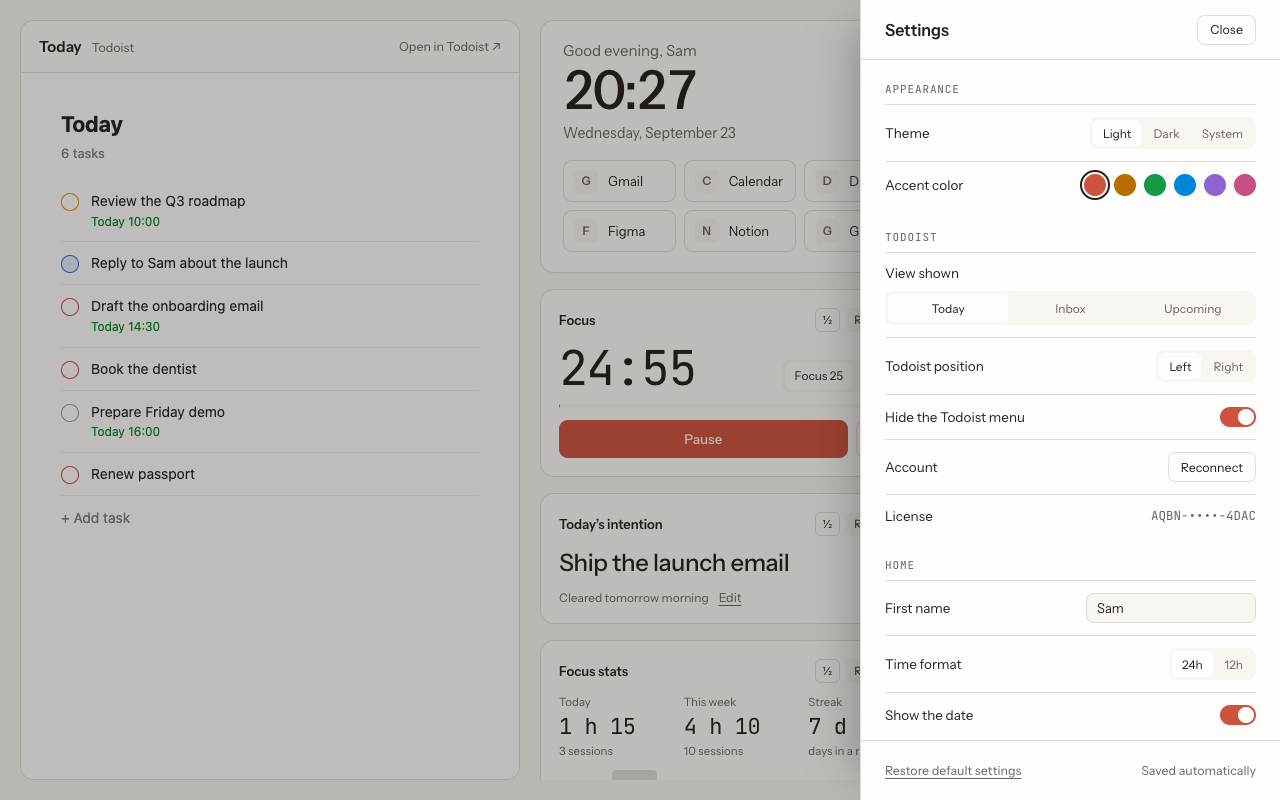
- Pick your preferences. Your first name for the greeting, the Todoist view to open (Today, Inbox or Upcoming) and a light or dark theme.
- Done. Every new tab now opens on your Todoist list. Click Customize to add widgets such as the focus timer or a quick note.
Method 2: open Todoist when Chrome starts
Without an extension, Chrome can open Todoist once, at launch:
- Open Chrome's Settings (or type chrome://settings/onStartup in the address bar).
- Under On startup, choose Open a specific page or set of pages.
- Click Add a new page and enter https://app.todoist.com/app/today.
Todoist now opens with Chrome. New tabs still show Chrome's usual page, and the Todoist tab gets buried as you open others.
Method 3: the home button
- In Settings → Appearance, turn on Show home button.
- Choose the custom address option and enter https://app.todoist.com/app/today.
A house icon appears next to the address bar and opens Todoist in the current tab. Useful, but you have to remember to click it.
Method 4: a pinned tab
Open Todoist, right-click the tab and choose Pin. It stays at the left of the tab bar across restarts. Combined with method 2, you always have Todoist one click away, but still not in your new tabs.
Troubleshooting
Chrome brought back its default new tab
Chrome sometimes asks whether you want to keep a new tab page set by an extension. If you clicked Change it back, the extension was turned off: go to chrome://extensions and turn New Tab ist back on.
Two extensions fight over the new tab
Only one extension can control the new tab page. If another one (a wallpaper or a dashboard extension, for example) was installed last, it wins. Turn it off in chrome://extensions.
Todoist asks me to sign in again
Todoist keeps you signed in with a cookie. If you clear your cookies or use a browser setting that deletes them when Chrome closes, you will need to sign in again. Allow cookies for todoist.com to avoid it.
The license code is refused
Check that you pasted the full code (three groups of four characters). A code works on up to 3 browsers: if you have reached that limit, write to support and we reset it.
Questions
Can I set a custom new tab page in Chrome without an extension?
No. Chrome lets you choose startup pages and a home button address, but the new tab page can only be changed by an extension.
Which Todoist address should I use?
https://app.todoist.com/app/today opens the Today view. Use /app/inbox or /app/upcoming for the other views.
Does it work on a Chromebook?
Yes, New Tab ist runs in Chrome on ChromeOS, Windows, macOS and Linux.
Is it safe to let an extension show Todoist?
New Tab ist shows the Todoist web app as it is, and you sign in on todoist.com directly. The extension does not read your tasks or your password.
More guides
New Tab ist is an independent extension. It is not made, endorsed or supported by Doist, the company behind Todoist. Todoist is a trademark of Doist, used here only to describe what the extension works with.