 New Tab ist
How to build a Todoist dashboard
Updated 24 September 2026 · by the New Tab ist team
Todoist has no single "dashboard" screen, but you can build one from three pieces: a view that shows the right tasks (Today, or a custom filter), a layout that makes it scannable (list, board or calendar), and a place where you see it without thinking, such as a Chrome new tab. This guide walks through each piece with filters you can copy.
1. Start from the Today view
Today is the closest thing Todoist has to a dashboard: it gathers everything due today across all your projects, with overdue tasks at the top and a one-click Reschedule option for them. For most people, a clean Today view is 80% of a good dashboard. The rule that makes it work: only tasks you really intend to do today get today's date.
2. Add filters for the rest
Filters are saved searches that update themselves. Create one from Filters & Labels in the sidebar, then add it to your favorites so it stays one click away. Useful dashboard filters:
| Filter query | What it shows |
|---|---|
| today | overdue | Everything due today plus anything you missed |
| (today | overdue) & p1 | Only today's top-priority tasks |
| 7 days & #Work | The coming week in your Work project |
| @waiting | Tasks you labeled as waiting on someone |
| no date & !#Inbox | Undated tasks outside the Inbox, to review weekly |
| assigned to: me | Tasks assigned to you in shared projects |
Separate queries with a comma to show several lists in one filter, for example today, @waiting.
3. Pick a layout
Every project and filter can be shown as a list, a board (columns, handy with sections such as "To do / Doing / Done") or a calendar. Lists are best for a daily dashboard; boards work well for a project overview.
4. Put the dashboard where you look
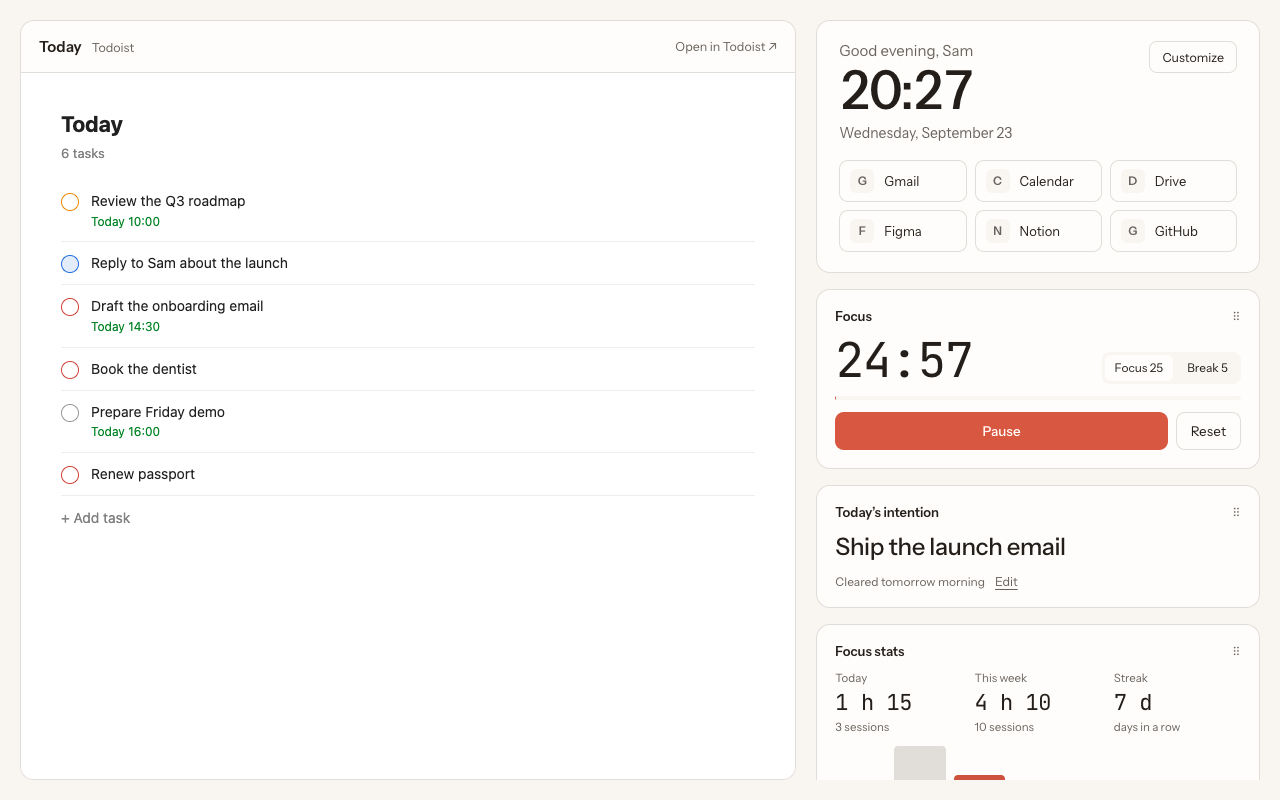
A dashboard you have to open is a dashboard you will forget. The simplest place to put it is the Chrome new tab, which you see dozens of times a day. With New Tab ist, each new tab opens on Todoist (Today, Inbox or Upcoming, and you can jump to any filter from there), with a clock, your shortcuts and widgets around it.
5. Add what Todoist doesn't have
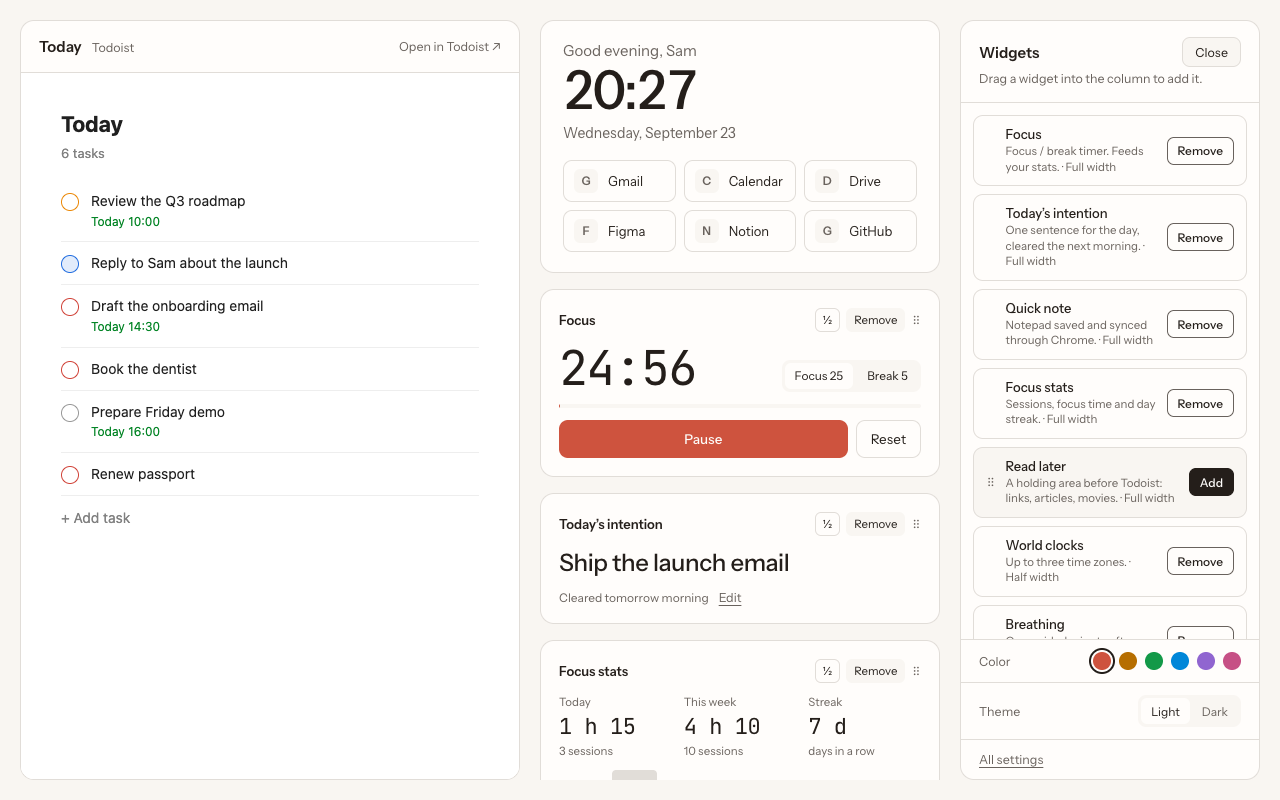
A good dashboard also shows how the day is going. New Tab ist adds a few widgets Todoist does not have:
- Today's intention: the one thing that would make the day a success.
- Focus timer and stats: sessions and focus time today, this week, and your streak.
- Quick note: a scratch pad for things that are not tasks.
- World clocks: for teams in other time zones.
A dashboard routine
- Morning: open a tab, clear overdue tasks with Reschedule, set today's intention.
- During the day: every new tab shows what is next; work through it in focus sessions.
- Weekly: open your "no date" filter and decide what to schedule, delegate or delete.
More on this in how to plan your day with Todoist.
Questions
Does Todoist have a dashboard view?
Not a dedicated one. The Today view, custom filters and favorites together work as a dashboard, and a new tab extension can keep it in view.
Can I show several filters at once?
Yes. Separate queries with a comma in one filter, for example "today, @waiting", and Todoist shows each as its own section.
Do filters work on the free plan?
Todoist's plans and their limits change over time; check Todoist's pricing page for the current number of filters included in each plan.
More guides
New Tab ist is an independent extension. It is not made, endorsed or supported by Doist, the company behind Todoist. Todoist is a trademark of Doist, used here only to describe what the extension works with.