 New Tab ist
Todoist Pomodoro timer in Chrome
Updated 24 September 2026 · by the New Tab ist team
Todoist does not include a focus or Pomodoro timer. Most people pair it with a separate timer app or a website, which means one more window to manage. New Tab ist puts a Pomodoro timer in every Chrome new tab, right next to your Todoist list, so you pick a task and start a session in the same place.
The Pomodoro technique in 30 seconds
The Pomodoro technique splits work into focused blocks, traditionally 25 minutes, separated by short breaks of about 5 minutes. After four blocks you take a longer break. The fixed length makes it easier to start a task you have been avoiding, and the breaks keep you fresh for the rest of the day. It pairs naturally with a task manager: the list tells you what to do, the timer helps you actually do it.
How it works with Todoist
- Open a new tab. Your Todoist Today list is on one side, the Focus widget on the other.
- Pick one task and write it as today's intention if you like, so it stays in sight.
- Press Start. A 25-minute focus session begins. You can close the tab: the timer keeps running.
- Get notified. Chrome shows a notification when the session ends, and the timer switches to a 5-minute break.
- Check the task off in Todoist, in the same tab, when it is done.
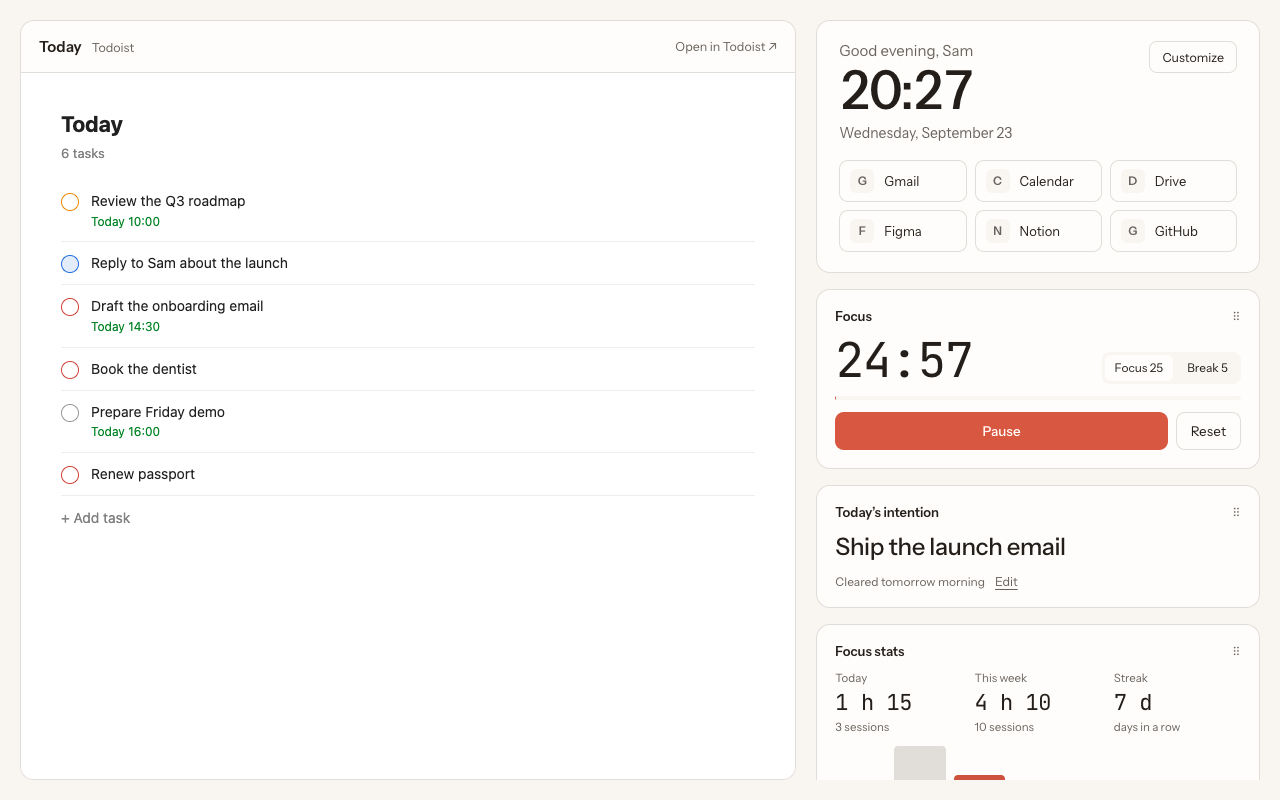
What the focus timer does
- Focus and break modes: 25 / 5 minutes by default, adjustable from 5 to 90 minutes of focus and 1 to 30 minutes of break, with pause, resume and reset.
- Keeps running in the background: close the tab or open another one, the countdown continues and the notification arrives on time.
- Visible in every tab: open any new tab to see the time left.
- Focus stats: sessions and focus time today, the total for the week, and your streak of days in a row, with a bar for each day.
- A breathing break: optionally, a one-minute breathing exercise starts after each focus session.
Tips for Pomodoro with Todoist
- Plan in Today, work in sessions. Each morning, move what matters into Today. Then work through it one session at a time.
- Split big tasks. If a task needs more than four sessions, it is probably a project. Add sub-tasks in Todoist that each fit in one or two sessions.
- Use durations. Todoist lets you give tasks a duration. Rounding them to 25 or 50 minutes makes it easy to see how many sessions your day holds.
- Capture, don't switch. When an idea or a to-do pops up mid-session, add it to Todoist's Inbox (press Q in Todoist for quick add) and get back to your task.
- Protect the break. Stand up, look away from the screen, or use the breathing widget. The break is what makes the next session work.
Why not a separate timer app?
A separate app works, but it lives somewhere else: another window, another tab, your phone. Every time you check it, you leave your task list, and every time you look at your list, the timer is out of sight. Having both in the new tab means one glance tells you what you are working on and how much time is left.
Questions
Does Todoist have a built-in Pomodoro timer?
No. Todoist lets you set task durations, but it has no focus timer. New Tab ist adds one to Chrome's new tab page, next to your Todoist list.
Can I change the session length?
Yes. In the settings, focus sessions go from 5 to 90 minutes and breaks from 1 to 30 minutes. The default is 25 and 5.
Does the timer keep running if I close the tab?
Yes. It runs in the extension's background, and Chrome notifies you when a session ends.
Are my focus stats sent anywhere?
No. Your focus history stays in your browser.
More guides
New Tab ist is an independent extension. It is not made, endorsed or supported by Doist, the company behind Todoist. Todoist is a trademark of Doist, used here only to describe what the extension works with.